TABLE OF CONTENTS
- How can I show Labels under the Icons in the main Navigation Menu?
- How can I change the background screen contrast or density?
- Change Your Default Homepage
- Switch on Two Factor Authentication
- Default Mapping Solution

How can I show Labels under the Icons in the main Navigation Menu?
Tip: The menu labels are useful for staff who are learning the system, but some people may find they prefer to see them all the time.
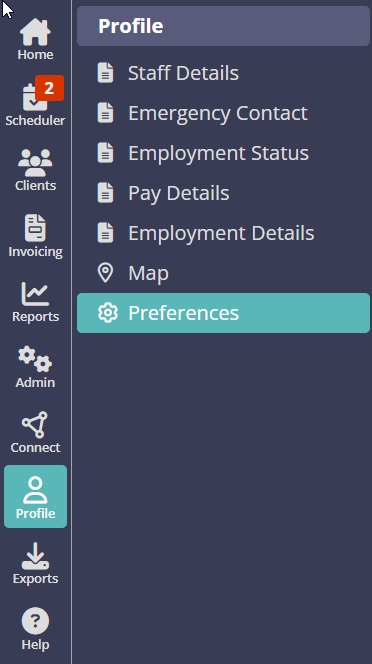
Navigation: Staff > Staff Profile > Preferences

- From the your Staff Profile, go to your Preferences.
- Toggle "Show Menu Labels" to ON and click "Update."

How can I change the background screen contrast or density?
Navigation: Staff > Staff Profile > Preferences

- From the your Staff Profile, go to your Preferences.
- Click the dropdown under "Page Background Color" and choose which screen density suits you better.
- Click "Update."

Change Your Default Homepage
From your own personal profile page, you can now set your preference for your homepage. Choose between having The Learning Zone or the Staff Dashboard as your homepage after logging into your system.
Navigation: Profile > Preferences > Default Start Page

- Click "Default Start Page" Drop Down
- Select "Dashboard" or "The Learning Zone"
- Click "Update"
- Refresh your system.

The Learning Zone and Dashboard Default Homepage

Switch on Two Factor Authentication
Note: This option may not be visible on your preferences settings as a Company default setting may have already been enabled.Using Two-Factor Authentication (2FA) when accessing web-based software or applications adds an essential layer of security that helps protect your account from unauthorised access.
Enabling Two-Factor Authentication means even if someone manages to obtain your password, they cannot log in without the second verification step. This greatly reduces the risk of data breaches and keeps all your sensitive information safe.
Its quick and easy to access your account when Two-Factor Authentication is enabled. Login as normal and Pet Sitter Plus will automatically email a 6‑digit verification code which you simply copy and enter in the box provided when prompted.
Navigation: Profile > Preferences
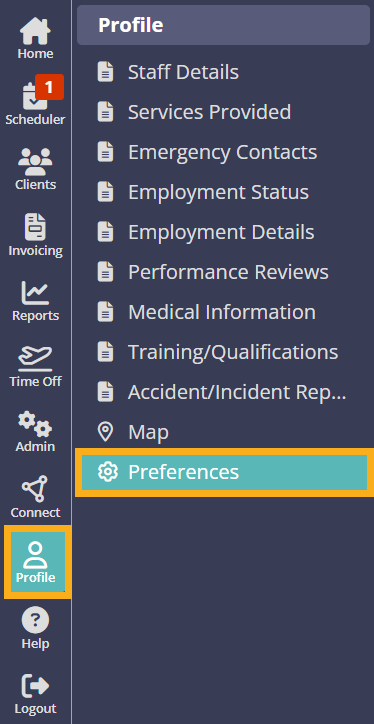
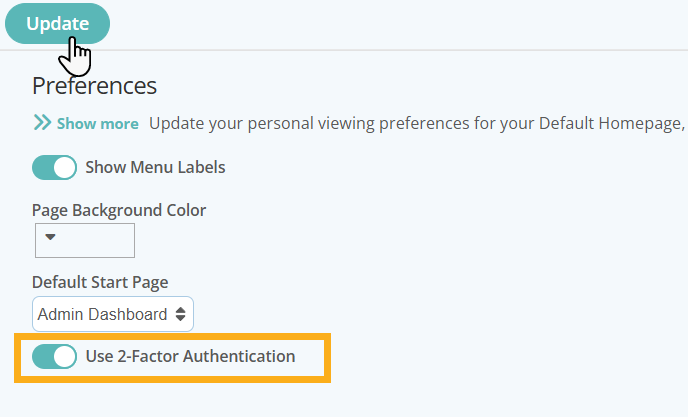
- Switch ON "Use 2-Factor Authentication"
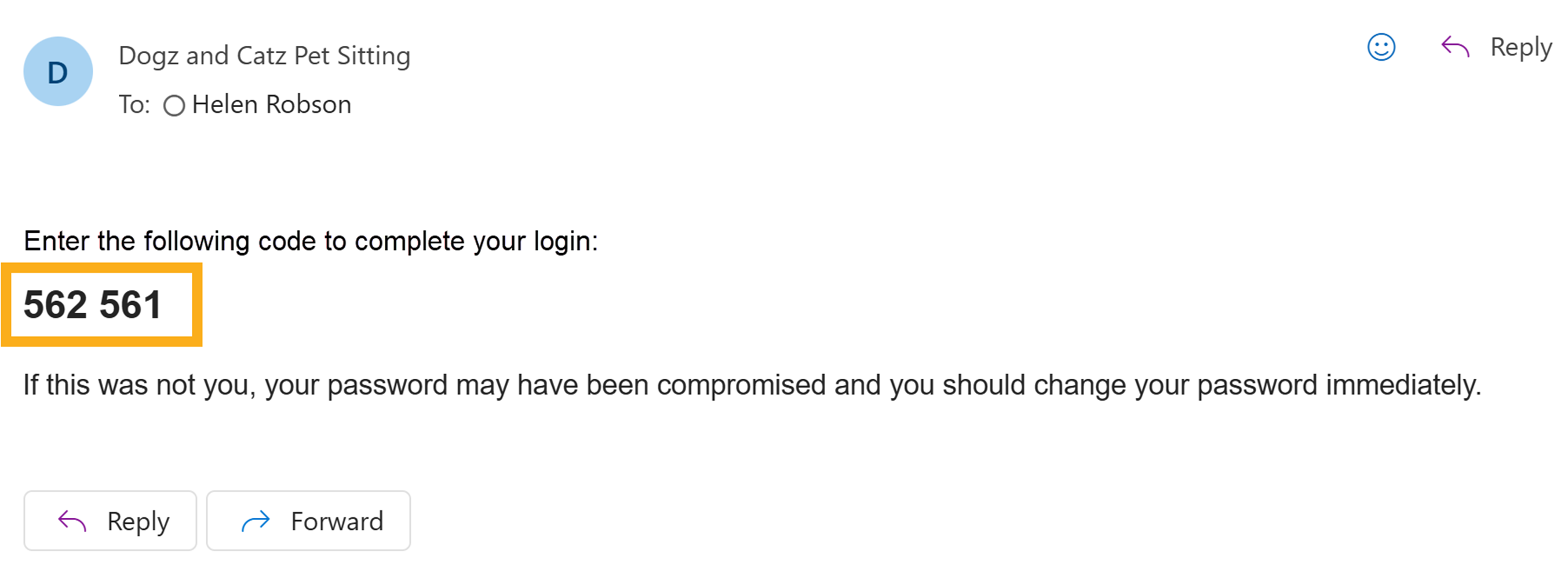
- When you next log into your account, a 6‑digit verification code is automatically emailed to you.
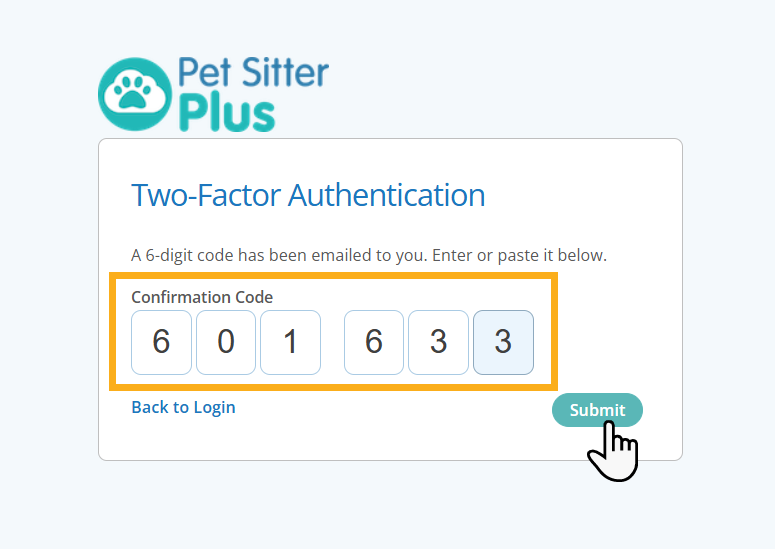
- Copy the Code and then paste, or enter in the Confirmation Code box provided on the login page.
- Click "Submit".
You have now safely accessed your account with two levels of security.
Default Mapping Solution
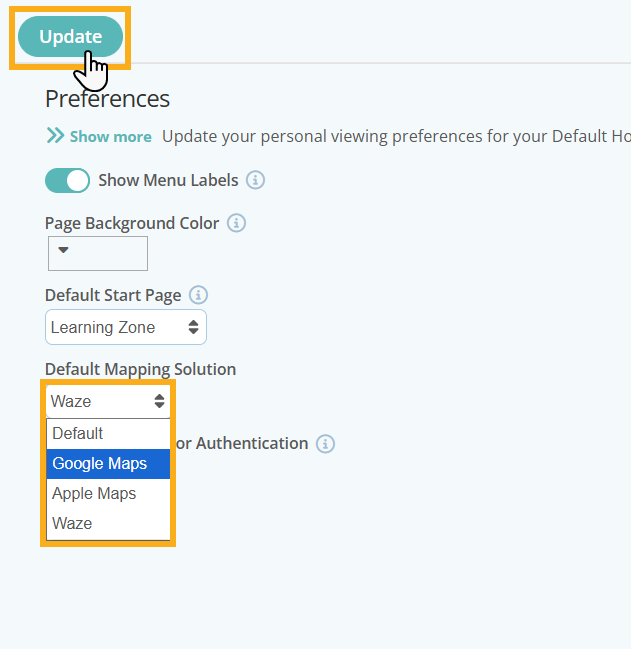
From your own preferences, you can now choose which map application opens when navigating to a client's property, rather than being limited to a single default option.
Whether you prefer Apple Maps, Google Maps, or Waze, setting your own mapping solution ensures when you click a Client's address from your Dashboard, you will automatically be directed to your preferred map option. Setting the "Default" mapping solution, uses the standard mapping behaviour built into Pet Sitter Plus (Google Maps.)
Navigation: Profile > Preferences > Default Mapping Solution
- Select your preferred option: your device's own default, Apple Maps, Google Maps, or Waze.
- Click "Update" to save your selection.
Tip: This setting is personal to each staff member and doesnt affect what other staff members see. Choose the map app that suits you best. If you're not sure which to pick, your device's own default option will simply open whichever maps app is already set as standard on your phone or tablet.
Was this article helpful?
That’s Great!
Thank you for your feedback
Sorry! We couldn't be helpful
Thank you for your feedback
Feedback sent
We appreciate your effort and will try to fix the article