TABLE OF CONTENTS
Service Availability settings allow Admins and Business Owners to prevent clients from requesting services that are outside of your regular operating days and hours. These settings help you stay in control of your bookings and avoid the hassle of declining requests that you are not able to provide.
Setting your company's regular service hours is easy and straight forward. These settings can be applied to individual days of the week and can apply to all, or some of your services and help your clients understand your day to day availability. For example, you may want to prevent clients from requesting services for a weekend or after your usual closing time.
How Do I Prevent Clients Requesting Services When I Am Closed?
There are a few steps involved when setting your Service Availability, initially ensure the appropriate module is switched on.
Info: By default, all Service Availability Settings are enabled.
Step 1 - Enable Regular Service Availability
Navigation: Admin > Services > Service Availability > Settings
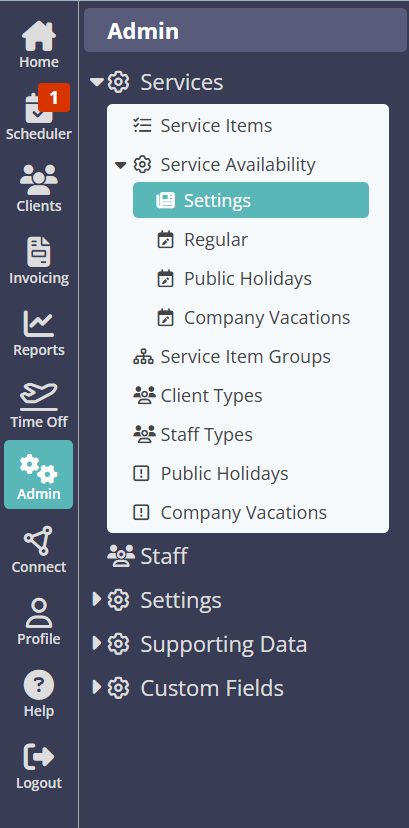
Ensure Regular Service Availability is enabled by switching on "Enable Regular Service Availability". Remember to click "Update" to save your changes.

Step 2 - Configure your Company Overall Availability
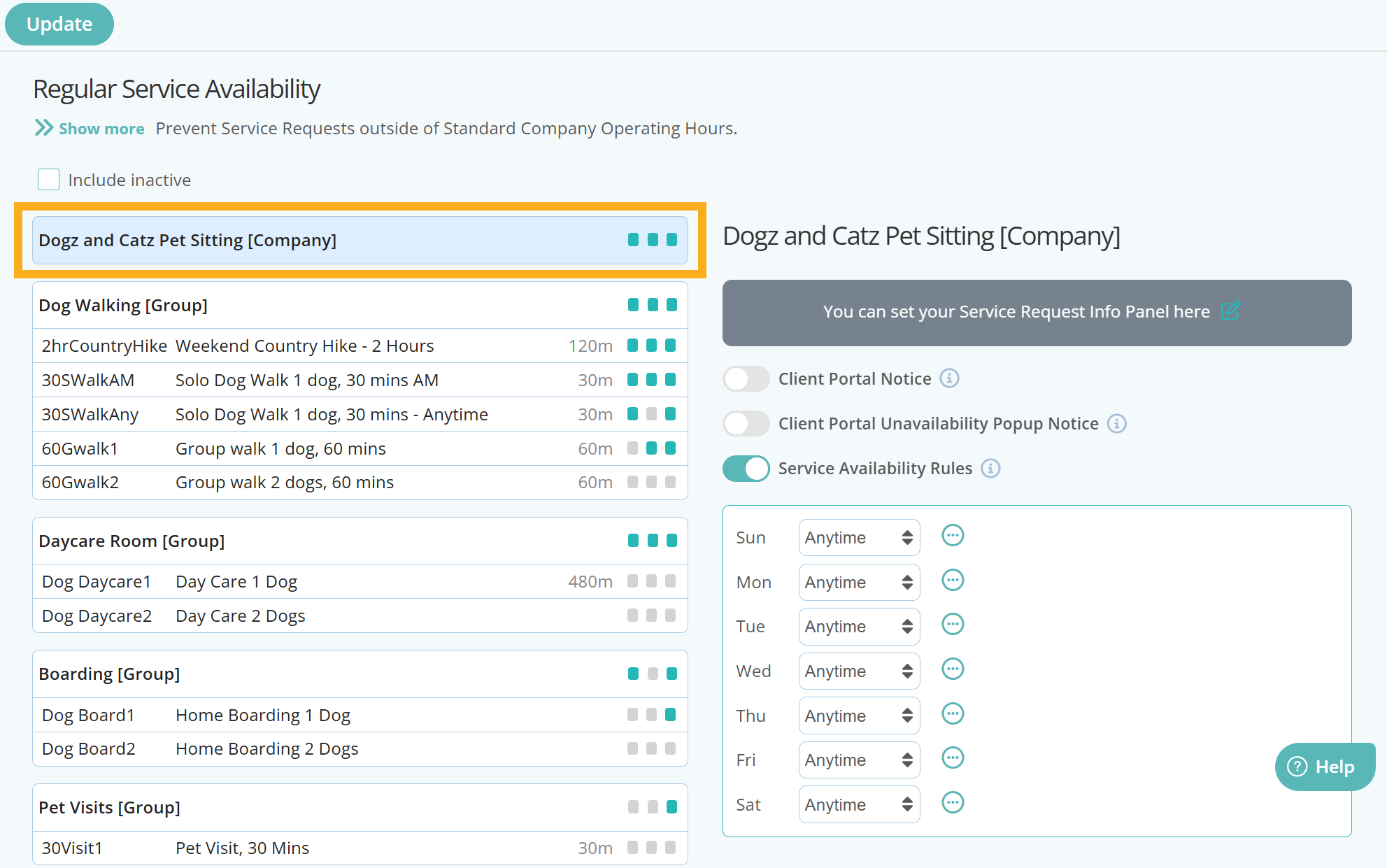
If your availability is the same across all or your Services, then simply use the Company Level Service Availability rules which will apply to all Service Groups and Services. You can apply your Service Availability Rules to each day of the week and even add different availability to specific days should this apply.
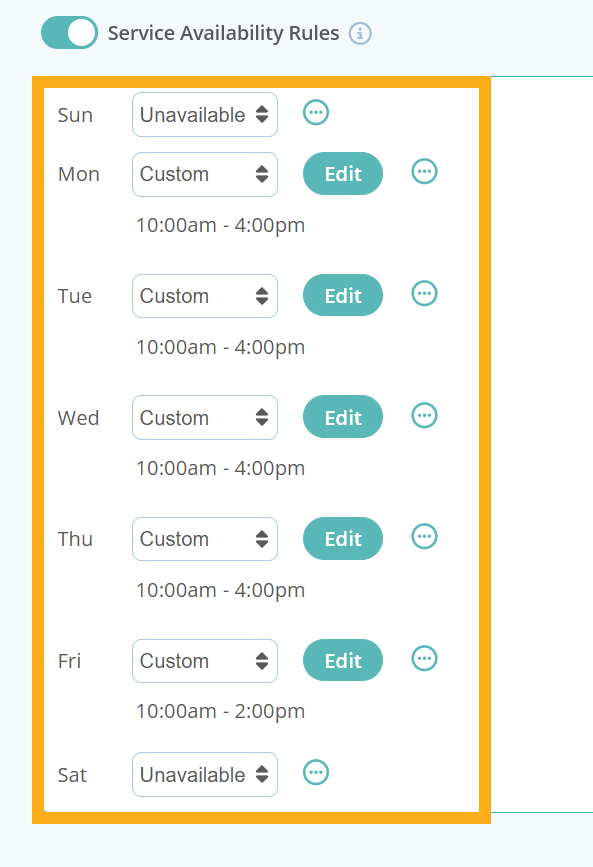
An example here would be that in general, your company provides all services Monday to Friday 10am to 4pm, however on a Friday, services are only available up until 2pm.
Info: When you first access Service Availability Rules, each day is set to "Anytime" by default.
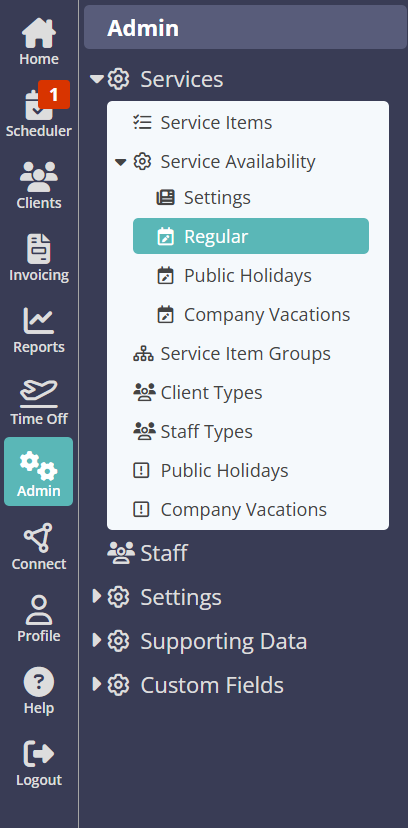
Navigation: Admin > Services > Service Availability > Regular
To set Company wide service availability, from the Regular page, click your company name in the first box provided as highlighted below:
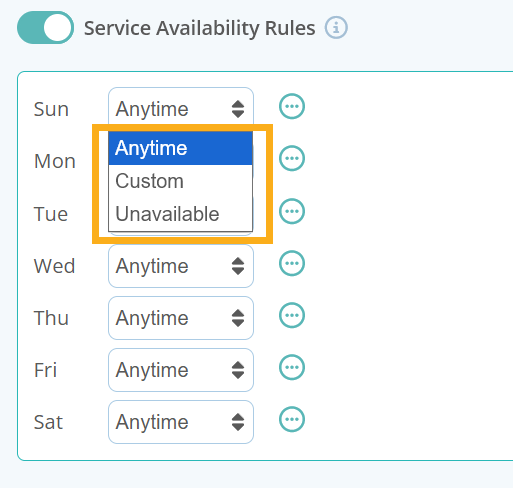
When setting your Company's daily Service Availability Rules, there are three options to choose from:
- Anytime - Select this rule if there are no restrictions to requesting this service during a 24 hour period.
- Custom - Select this rule to customise if services are only available at certain times during the day. You have the option to add up to 4 different "shifts" to create variable availability for the day.
- Unavailable - Choose “Unavailable” if this service is not available to book during the day.
Below are a few examples of Company wide service availability using various Service Availability Rules.
Scenario 1: The company has no restrictions in place for booking services and allows bookings any day of the week and at anytime. For this example, everyday should be set to "Anytime."

Scenario 2: The company provides all of its services Monday to Friday, between 10am and 4pm, however on a Friday, they close at 2pm.
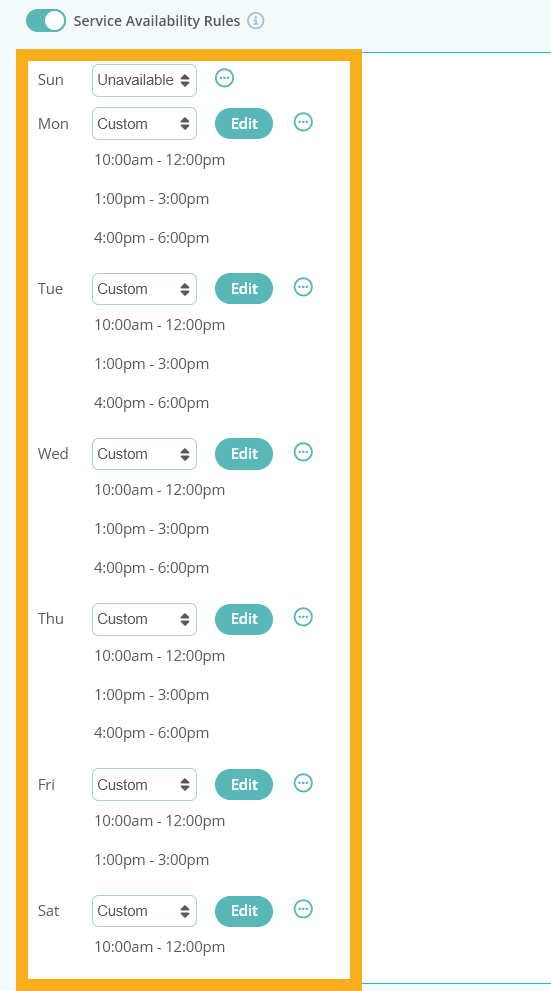
Scenario 3: The company provides services Monday to Thursday with 3 separate shifts available to select each day. On Fridays there are no late afternoon services available, Saturdays there is only 1 shift available between 10am -12pm and on Sundays the company is closed.
Step 3 - Check Service Availability Settings are Correct in the Client Portal
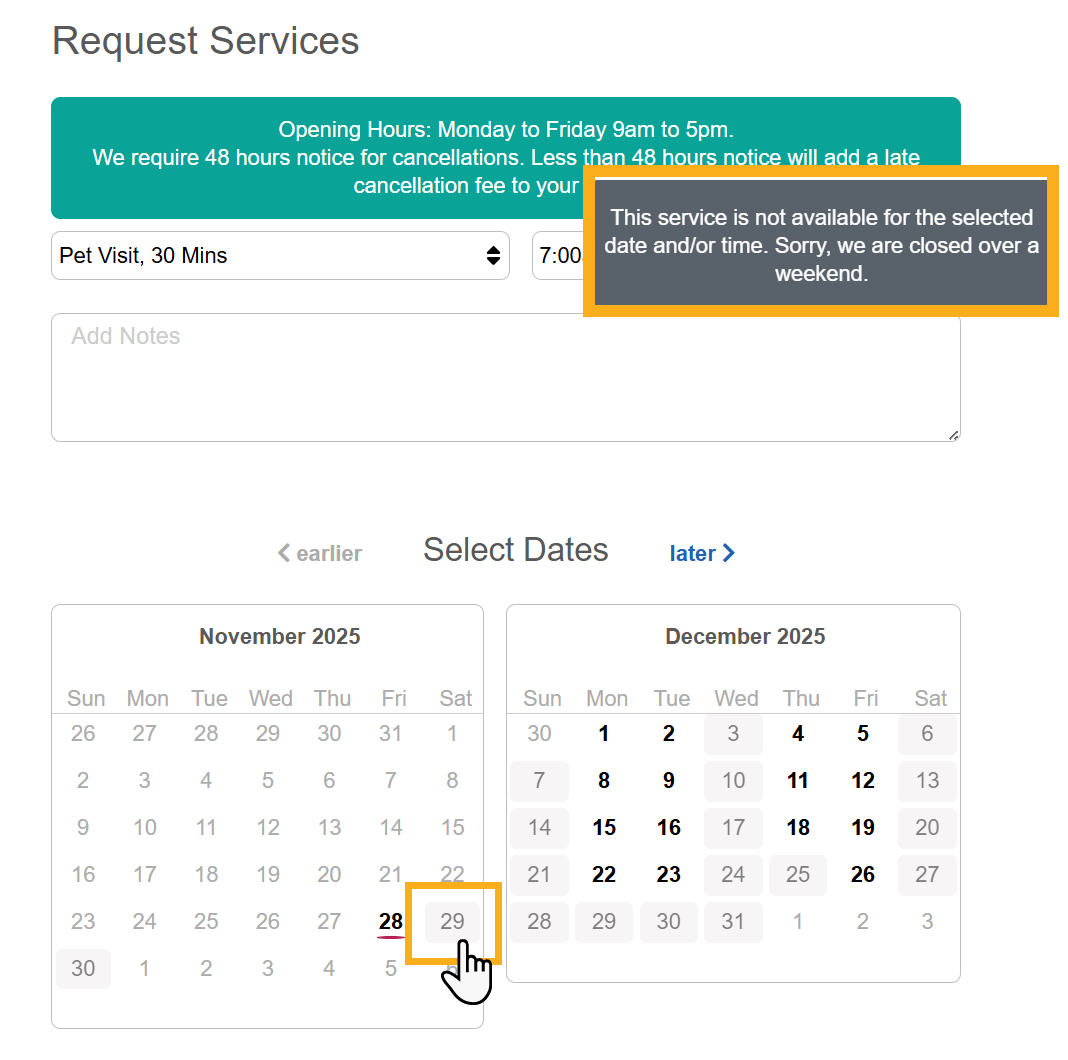
Once you have set your Company wide service availability, its a good idea to check that your settings are functioning correctly. Access a clients portal and try to select a few services and times outside of your regular operating hours.
Tip: Read more about adding specific Service Group or Service availability, or prevent clients from being able to request services when its a public holiday or company vacation. Or learn how to add customized messages to communicate with your clients about your services and availability.
Was this article helpful?
That’s Great!
Thank you for your feedback
Sorry! We couldn't be helpful
Thank you for your feedback
Feedback sent
We appreciate your effort and will try to fix the article