GPS Check-In / Check-Out records the time and location when you or your sitters start and end a visit or walk.
If check-in or check-out isn’t working, or the location looks wrong, please go through the steps below before you contact Support. Most issues are fixed this way.
TABLE OF CONTENTS
- Understanding how an Android device determines and provides your location to Pet Sitter Plus
- Step 1: Check that the Check-in Check-out function is switched on in Pet Sitter Plus
- Step 2: Ensure you have an adequate network signal to connect your cell phone to
- Step 3: Check that the phone's Location setting is switched to ON
- Step 4: Check that the Browser App's Location setting is switched to ON
- Step 5: Check your GPS Location in Google Maps
- Step 6: Refresh Location Services
- Step 7: If none of the above fixes the issue for you...
- Step 8: If all else fails...
- Frequently asked questions
- In summary
Understanding how an Android device determines and provides your location to Pet Sitter PlusHow your Android device finds your location Your phone’s browser gets your location from the device, using a mix of three sources. The one it uses at any moment affects how accurate the result is:
Check your settings
Good to know:
Why locations are sometimes off GPS is usually accurate to within a few meters. Indoors, in built-up areas or on hilly ground, your phone may fall back on cell network or Wi-Fi data, which can place you up to about half a mile (1 km) away. If this only happens now and then, it’s normally down to your surroundings rather than a fault. |
Step 1: Check that the Check-in Check-out function is switched on in Pet Sitter Plus
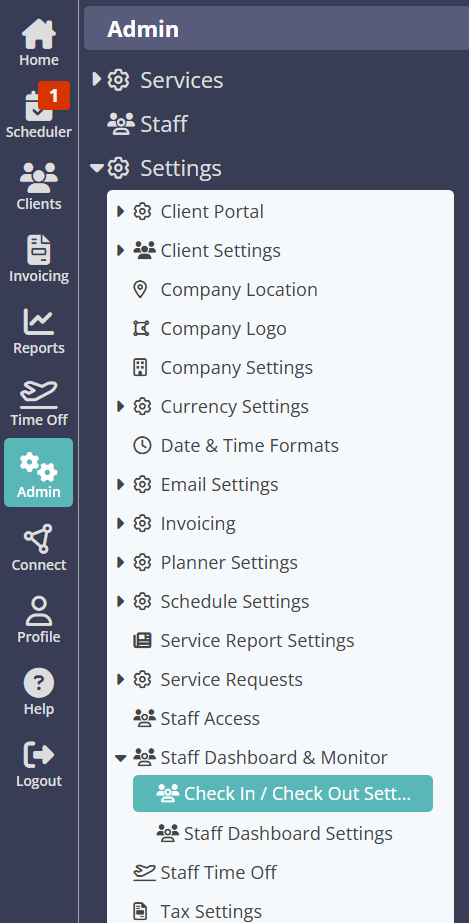
Navigation: Admin > Settings > Staff Dashboard & Monitor settings
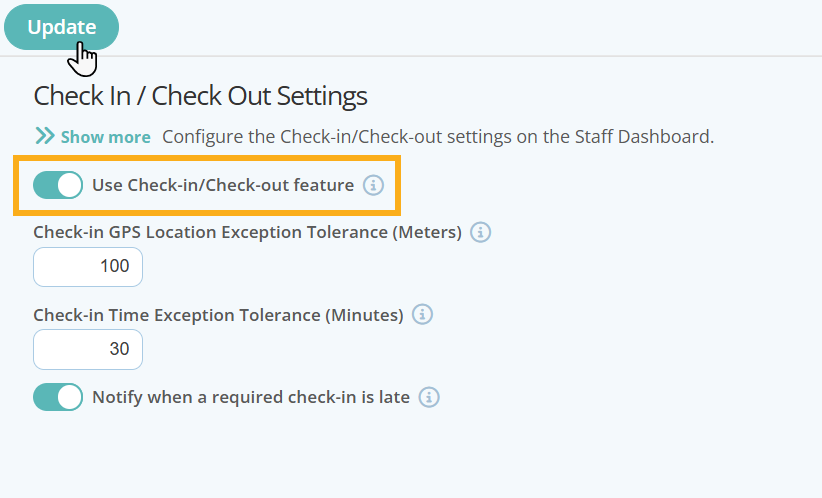
- Check the option for "Use Check-in/check-out feature" is switched ON.
- Click "Update".
Step 2: Ensure you have an adequate network signal to connect your cell phone to
Navigate to your phone's SETTINGS > MORE NETWORKS > MOBILE NETWORKS
- Check the number of bars on the icon at the top of the phone screen.
- If you are not sure your phone is connected to a network, in the "Data Usage", check your "Mobile Data" is checked or switched on.
- In "Mobile Networks" you can also check that you are able to receive 4G and 5G signals. Anything before that will not work with Pet Sitter Plus.
- If you are able to connect to WiFi, you should check this option is switched on.
Step 3: Check that the phone's Location setting is switched to ON
Navigate to your phone's SETTINGS > LOCATION
Note: Your phone may have different menu options (Google Pixel settings are used in these examples) to find the "Location" option, eg. you may be directed to a different menu option. 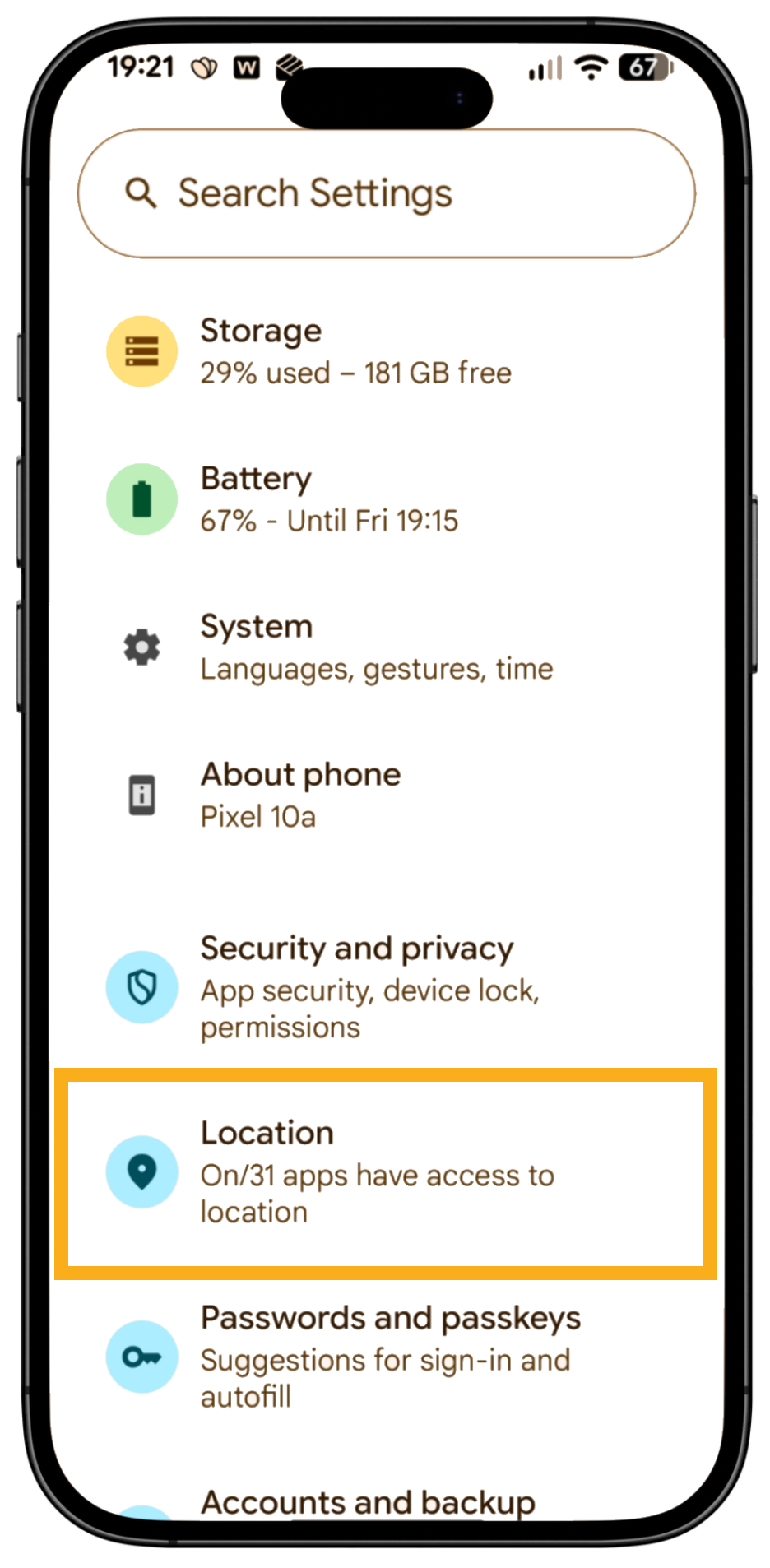
- Check that the option for "Location" is switched ON.
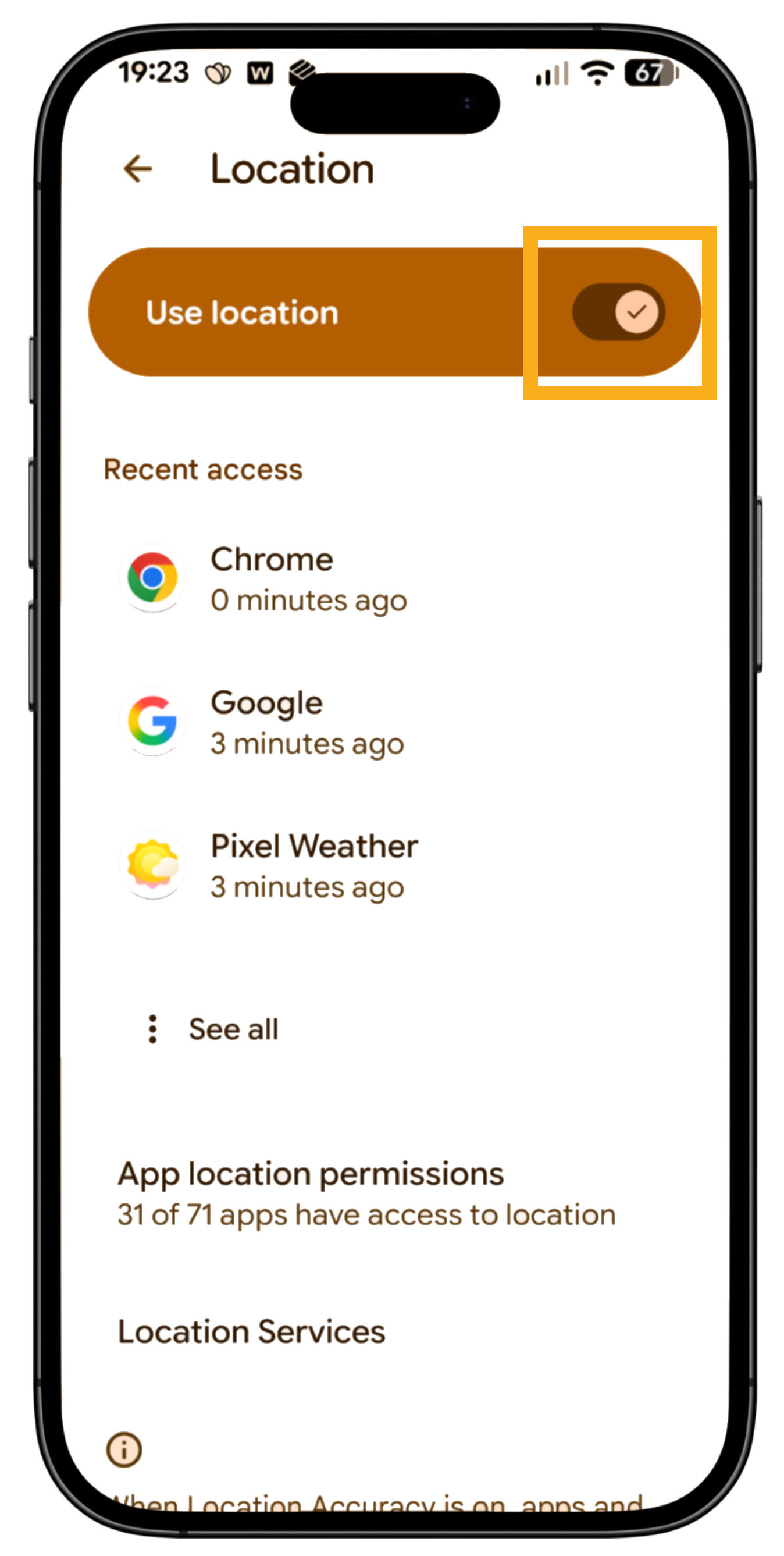
- Click Location Services
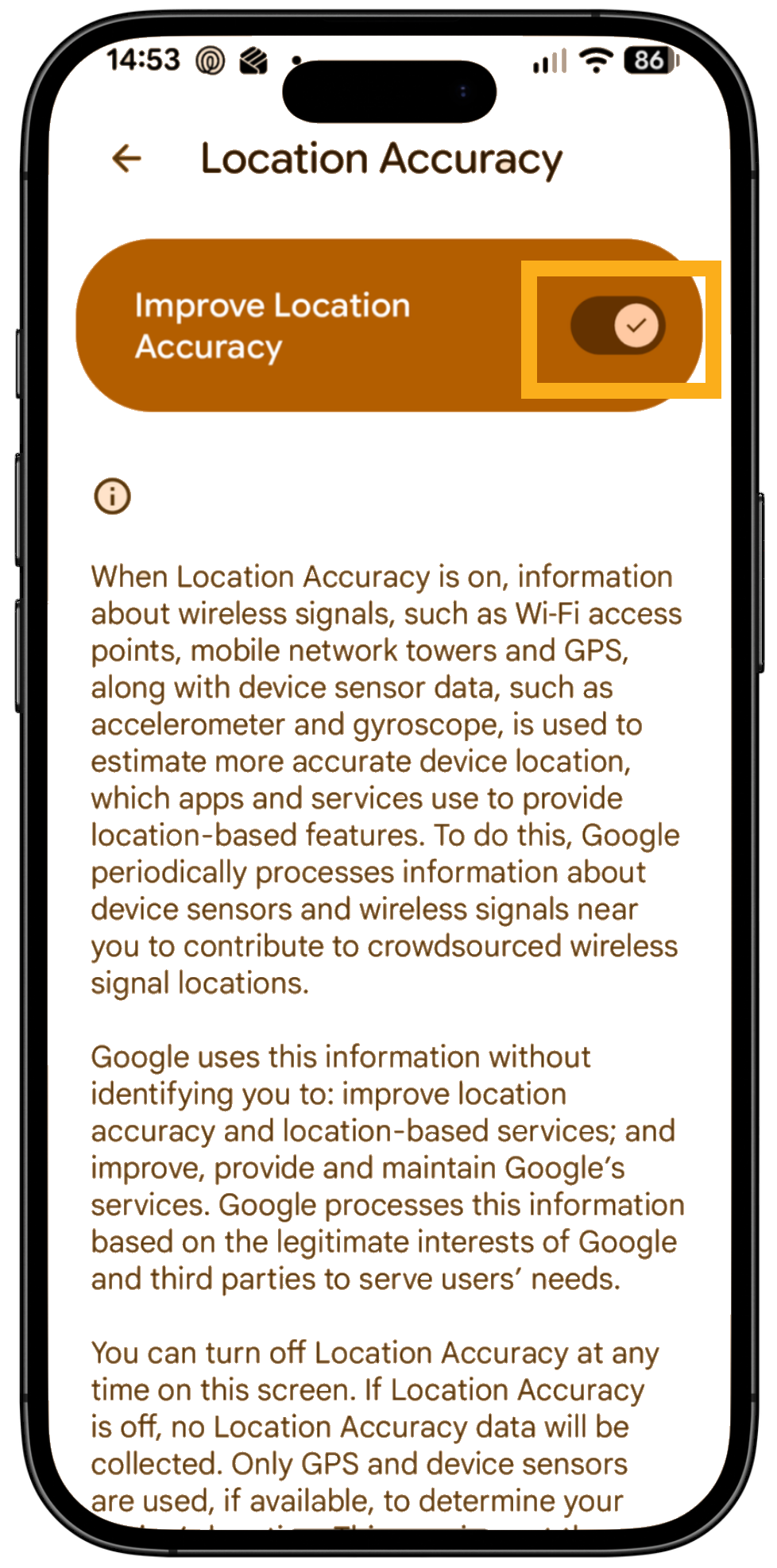
- Then select "Location Accuracy"
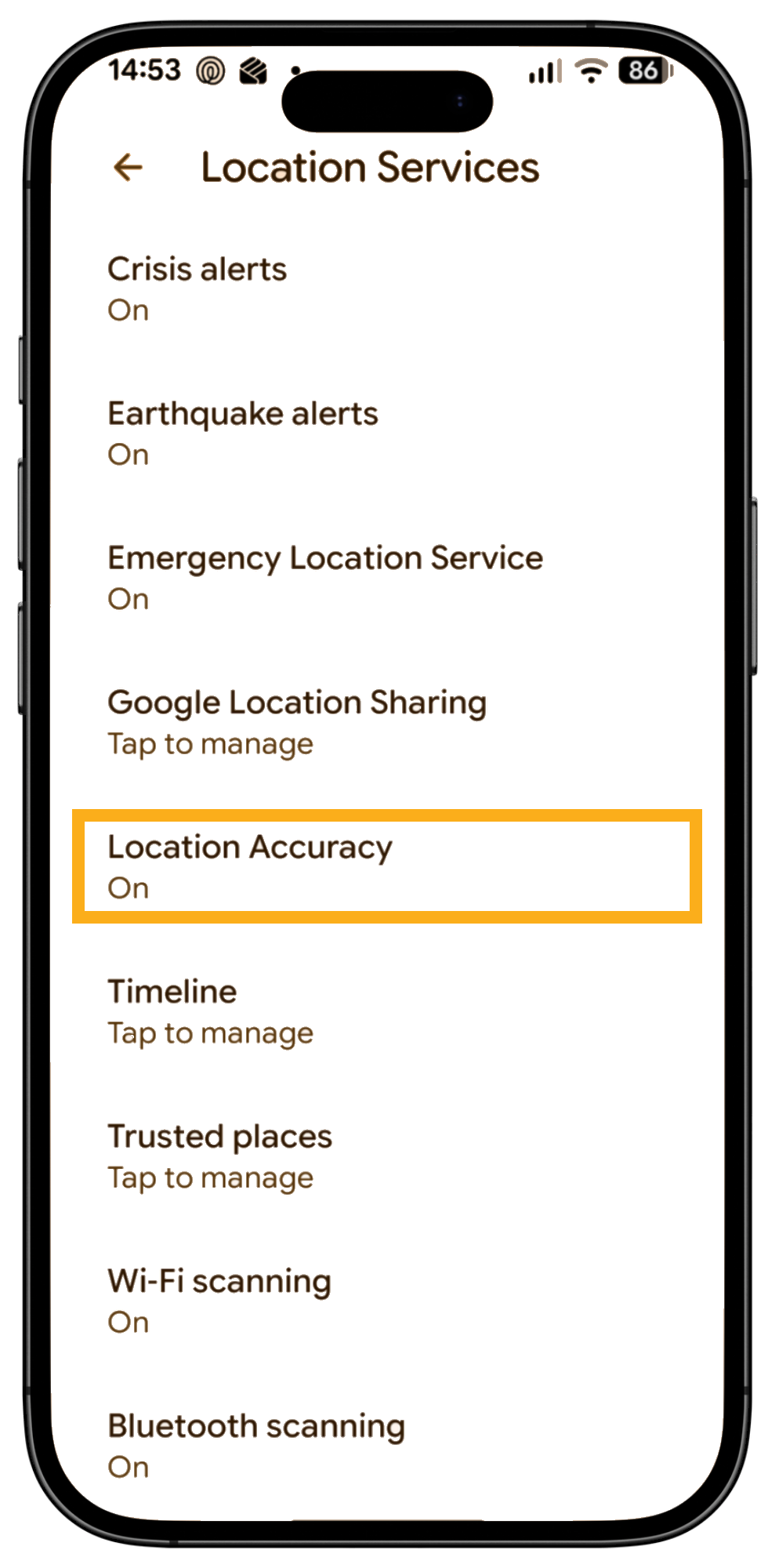
- Switch on "Improve accuracy"
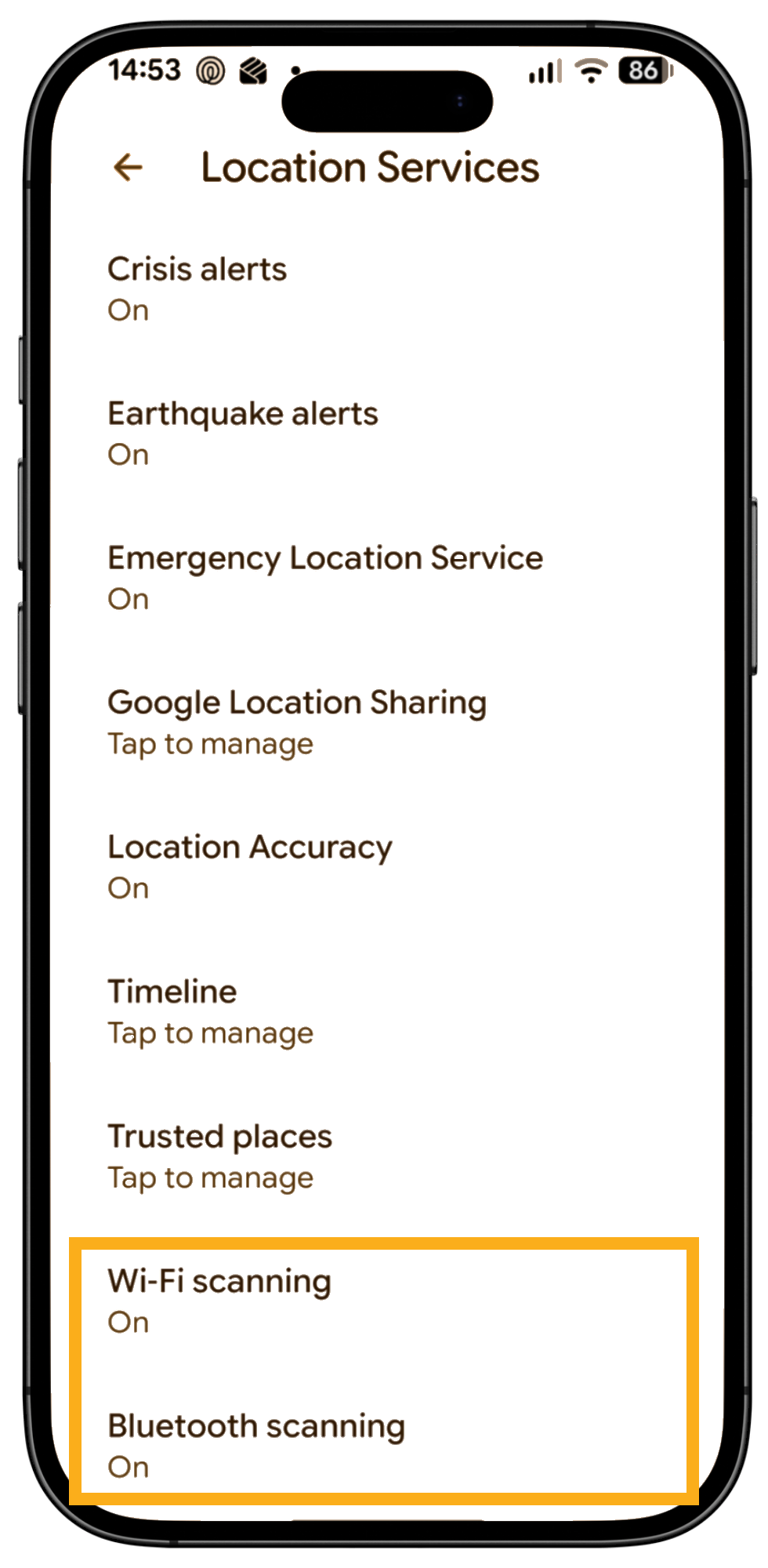
- Make sure you have the options for Wi-Fi and Bluetooth scanning switched "ON"
Step 4: Check that the Browser App's Location setting is switched to ON
Navigate to your phone's SETTINGS > LOCATION
- Firstly, check which browser you are using to access PSP. Our top recommended browser is Chrome, as we rarely have any issues with accessing PSP using this browser, both on the mobile and desktop interfaces.
Note: If you are experiencing browser issues, change to Chrome before carrying out any further testing.- Select Location
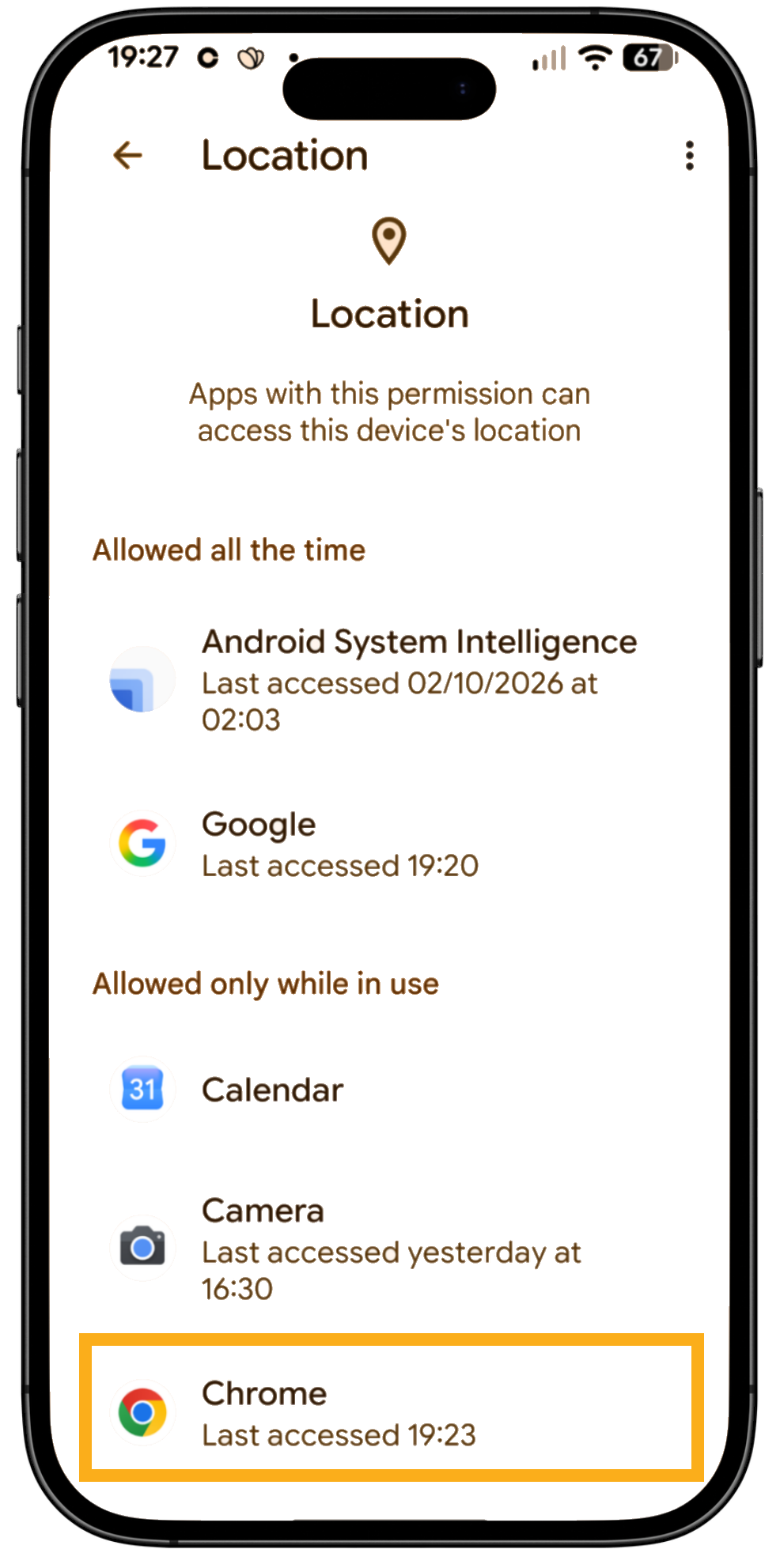
- Click "App Location permissions"
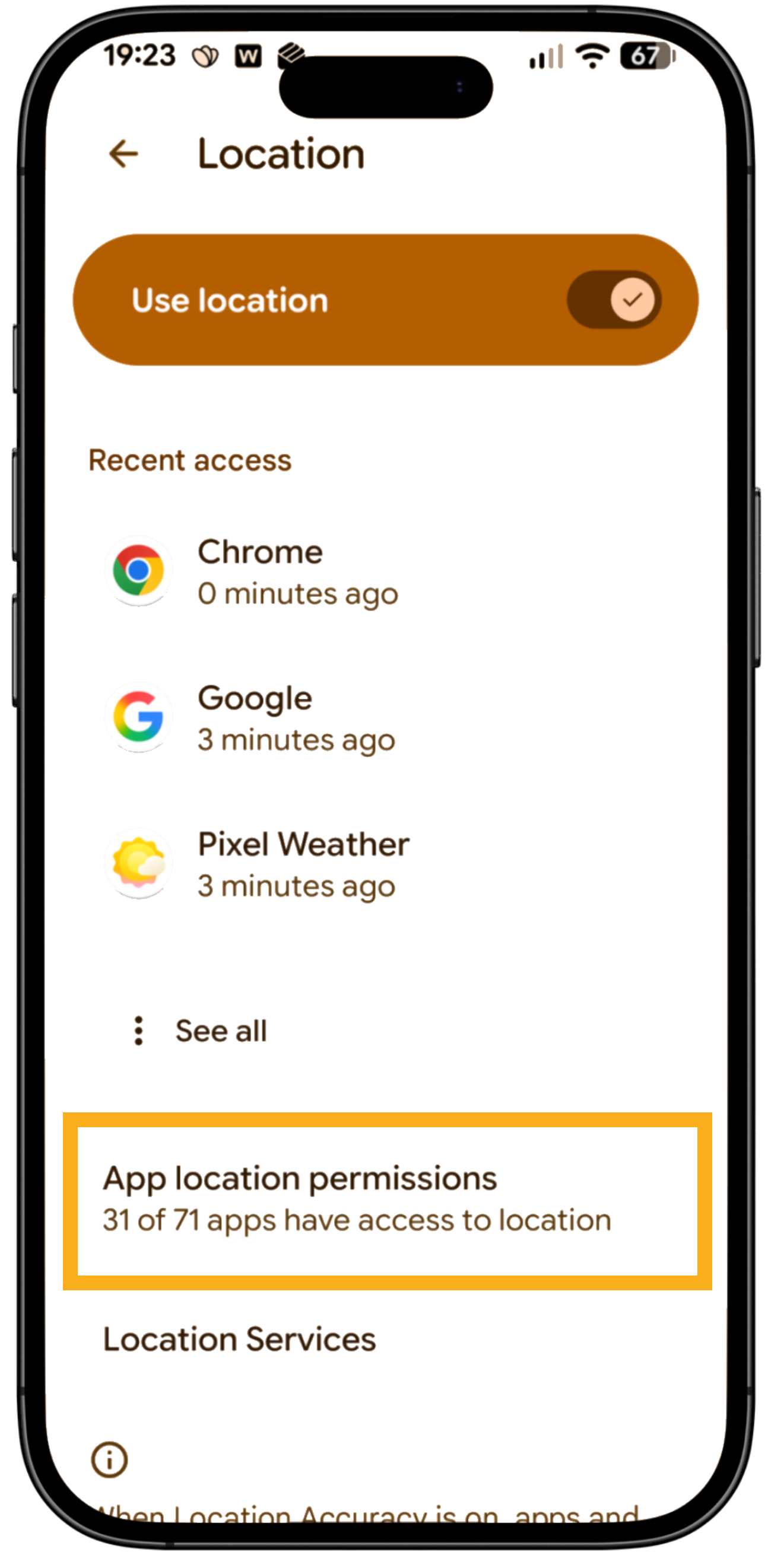
- Locate and select Chrome from the App List
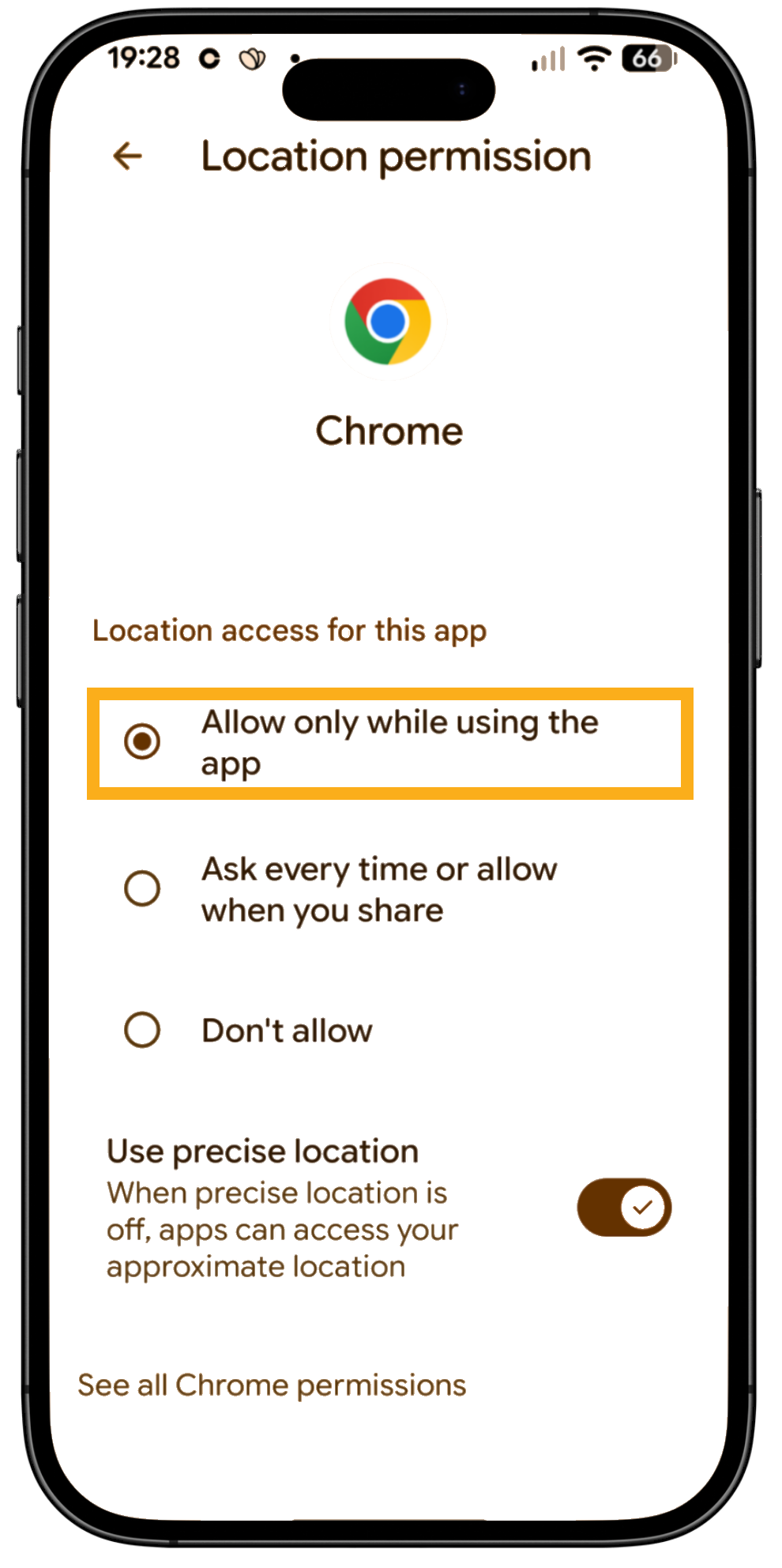
- Select "Allow only while using the app"
Step 5: Check your GPS Location in Google Maps
- Tap Google Maps
- Check that Maps has an accurate location for you
Step 6: Refresh Location Services
- Open your device's Settings.
- Tap Location.
- Tap the On/Off switch to turn location Off
- Restart your device (power off and on)
- Open your device's Settings again.
- Tap Location.
- Tap the On/Off switch to turn location On
Step 7: If none of the above fixes the issue for you...
- Re-boot your phone
- Check your operating system is the latest available version
- Check your Chrome App is the latest available version
- Clear your browsing history from Chrome
- Delete the Chrome App and re-download it from the store
Step 8: If all else fails...
Note: A full factory reset is very rarely needed. In almost every case reported to us, the steps above have fixed the issue.
Frequently asked questionsWhy does check-in keep spinning on my Android phone?The spinning timer usually means your phone or browser isn't allowed to share your location. Check that Location is switched on and that Chrome is set to Allow only while using the app, with Use precise location switched on. Do I need an app to check in on my Android phone?No. Pet Sitter Plus works in your phone's web browser, so there's nothing to download. Just log in through Chrome. Why is my check-in location in the wrong place?Indoors, in built-up areas or on hilly ground, your phone may use cell or Wi-Fi data instead of GPS, which is less accurate. Switch on Google Location Accuracy and Use precise location for Chrome and, where possible, check in outdoors. Which browser works best for check-in on Android?We recommend Chrome, as we rarely see issues with it on mobile or desktop. If you use another browser and check-in isn't working, switch to Chrome before trying anything else. Why do my phone's settings look different from the screenshots?Android menus vary between makes and versions; our screenshots use a Google Pixel. If you can't find a setting, open Settings and type "Location" in the search bar at the top. |
Info: Related articles
- Staff Check-in on Mobile
- Staff Check-Out on Mobile
- FAQ: Check-in and out on Android Phone
- FAQ: GPS Accuracy at Check In and Out
- Check-in and out Not Working on iPhone
- How Can Staff Login on Mobile?
In summary
With the right phone and browser settings, GPS Check-In / Check-Out gives you an accurate record of when and where every visit and walk starts and ends.
Not a Pet Sitter Plus client yet? Pet Sitter Plus is all-in-one business software for every kind of pet care provider, from dog walkers, pet sitters and cat sitters to dog boarders, dog day cares, trainers and groomers. It suits everyone from solo business owners to large, multi-service teams. Every subscription includes the full software with no locked features. Your plan (Solo, Team or Enterprise) is based simply on your location and the number of staff with services assigned to them. See our pricing page and Start your 30-day free trial with full access, no credit card required, and unlimited coaching and support.
Last reviewed: October 2026
Was this article helpful?
That’s Great!
Thank you for your feedback
Sorry! We couldn't be helpful
Thank you for your feedback
Feedback sent
We appreciate your effort and will try to fix the article